
Multiple Companies in QuickBooks Online: Separate Company Files vs. Classes and Locations
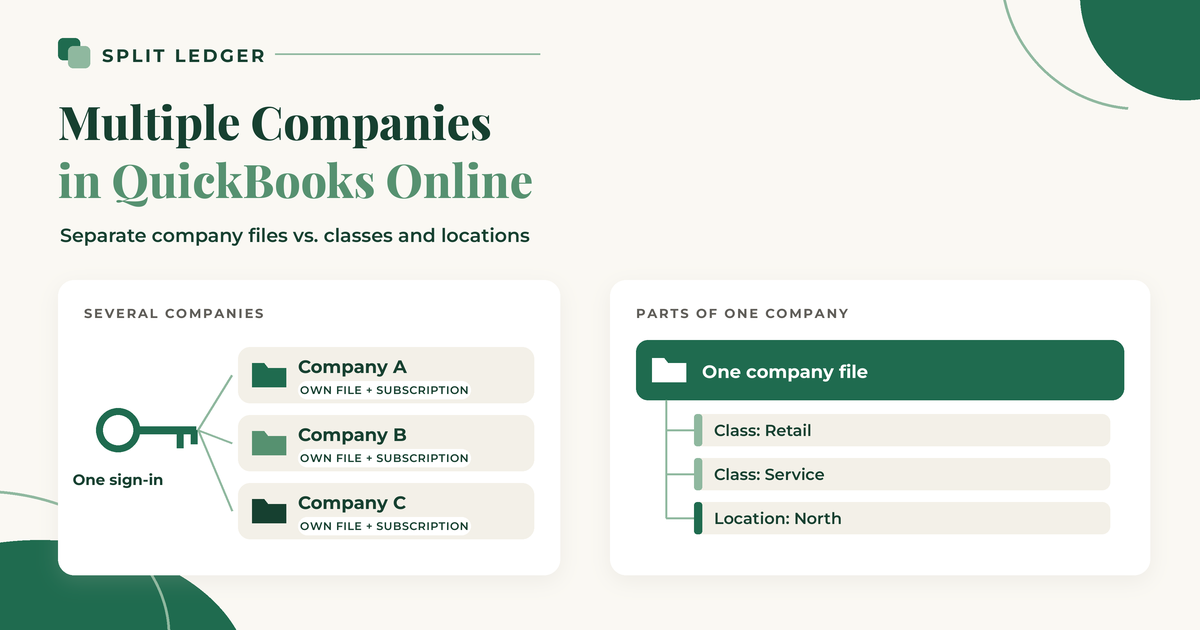
If you own more than one company, one of the first QuickBooks questions is whether they can all live in one account. The short answer: you can manage several companies under one QuickBooks Online sign-in, but each company is its own file with its own subscription. Classes and locations are a different tool, meant for parts of one company.
This post walks through what Intuit's own help pages say, how to tell which setup fits you, and what it means for the receipts you share between companies. I checked each Intuit page linked here on October 26, 2026. QuickBooks changes, so check them again before you set anything up.
One sign-in, separate company files
Intuit's help page on adding another company file covers the "one account" setup. The key points:
- Each company needs its own paid subscription. Adding it to your existing sign-in doesn't change that.
- You switch between them from Settings, then Switch company, without signing out.
- The data stays completely separate. Users have to be invited to each company. Bank and card connections in one company aren't visible in another. You can copy lists like vendors and the chart of accounts into a new company, but a later change in one company won't update the other.
So "multiple companies in one QuickBooks account" really means one login that opens several separate sets of books.
What classes and locations are for
Classes and locations split up activity inside a single company.
- Intuit describes classes as important parts of your company, like store departments or product lines.
- It describes locations as a way to categorize data from different locations, offices, regions, outlets, or departments of the same company.
- Both are only on QuickBooks Online Plus and Advanced. Per Intuit's usage limits page, Plus allows 40 classes and locations combined, Advanced has no limit, and Simple Start and Essentials don't include either one.
Notice the phrase in both descriptions: parts of the same company.
Which one fits you
The deciding question is whether you have one legal entity or several.
Separate company files usually fit when:
- Each company is its own LLC or corporation with its own EIN.
- Each one files its own tax return.
- Each one has its own bank and card accounts.
- You want a real balance sheet for each company, not just a profit and loss.
Classes or locations usually fit when:
- It's one legal entity with one EIN, running more than one line of business, store, or brand.
- You mostly want to see profit and loss by segment.
- Everything files on one return.
On Intuit's community forum, Intuit's own support replies give the same rule of thumb: if the segments are one legal entity and don't need separate tax filings, classes or locations work; if they're separate entities, each needs its own company file (example thread). Community answers aren't official policy, and your structure may have wrinkles, so confirm the setup with your bookkeeper or CPA.
What it costs to get it wrong
Several LLCs in one file with classes: the books blur together. Bank accounts, loans, and equity belong to the whole file, so it gets hard to show what each LLC owns and owes, and each company's tax return has to be pieced back out at year-end.
Separate files for what is really one company: you pay for extra subscriptions and enter things twice for no reason.
The catch with separate files: shared receipts
Separate files keep each company clean, but they create one daily problem. A receipt that belongs to two companies can't be recorded once and shared. Because the files don't talk to each other, the share for each company has to be entered in that company's file, with the receipt attached to each one.
You also have to decide how much each company carries. The post on how to allocate shared expenses between your companies covers four simple methods. The post on splitting one receipt between two LLCs in QuickBooks Online walks through recording it, including the intercompany balance when one company paid for both.
A simple setup for most owners of a few companies
- One QuickBooks Online company per legal entity, all under one sign-in so switching is fast.
- Use classes or locations inside a company only if that company has segments you want to track.
- Give each company its own bank and card accounts where you can, so each file's bank feed only shows its own spending.
- Pick an allocation method for shared costs and write it down, so every shared receipt gets split the same way.
- Decide the company the day you get the receipt, not at month-end.
Where Split Ledger fits
I built Split Ledger for the shared-receipt part of this setup, first for my brother, who runs several businesses. You connect each of your QuickBooks Online companies, one connection per company. You snap or upload a receipt, check what the AI read, and split it across companies in any amounts you choose. Each share is filed to that company's QuickBooks Online as a purchase with the receipt image attached, and a copy goes to your Google Drive under /Receipts/{Company}/{Year}/. If you pick your parent or overhead company, the whole receipt goes there.
It doesn't replace classes or locations, and it doesn't create company files for you. It just gets shared receipts into the right books.
Split Ledger is in free early access right now. You can sign up here.
This is general information, not tax or accounting advice. Check with your tax professional for your situation.
Split Ledger is not affiliated with or endorsed by Intuit or Google.