
QuickBooks Receipt Capture With Several Companies: What It Does and Where It Stops
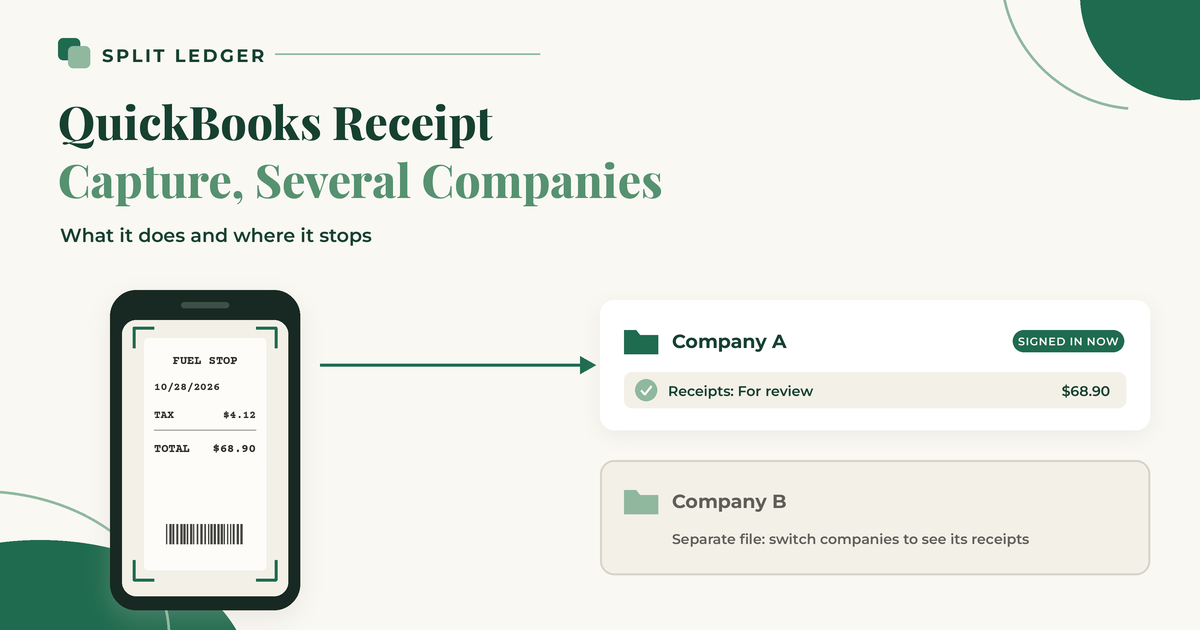
QuickBooks Online has receipt capture built in, and for a lot of owners it's enough. If you run more than one company, though, it helps to know exactly how it behaves before you build your routine around it.
This post covers how QuickBooks receipt capture works, how it fits with several company files, and where you'll need a workaround. Everything here comes from Intuit's own help pages, which I checked on October 26, 2026. QuickBooks changes its menus often, so check them again before you rely on a step.
How QuickBooks receipt capture works
Per Intuit's page on uploading receipts:
- Getting receipts in. Snap a photo with Receipt snap in the QuickBooks mobile app, upload a file from your computer or Google Drive, or email it to a custom forwarding address an administrator sets up. Files can be PDF, JPEG, JPG, GIF, or PNG, and each file should hold only one receipt.
- Reading them. QuickBooks pulls the details from the receipt and puts it in the For review tab.
- Reviewing them. For each receipt, you either match it to an existing transaction (often one from your bank feed) or create a new expense. You can fix the details and pick the category first.
- Plan limits. Intuit notes the feature is limited on QuickBooks Online Free and Lite.
For one company with one bank feed, that's a solid workflow: snap it, let it match the card charge, done.
What changes with several companies
In QuickBooks Online, each company is its own file. Intuit's page on adding another company file says companies can share a sign-in, but their data stays completely separate, and you switch companies to work in another one.
For receipts, that means:
- A receipt lands in the company you're working in. Before you snap or upload, make sure you've switched to the right company. It's an easy step to forget on a busy day.
- Plan on a forwarding address for each company. Intuit describes setting the address up from the Receipts page, and the files don't share settings. Keep a note of which address belongs to which company.
- Matching only sees that company's bank feed. Bank and card connections are per company, per Intuit. If one company's card paid for something, the receipt will only find its match in that company's file.
- Users are set up per company. Anyone who forwards or snaps receipts needs access to each company they file for.
Where it stops: one receipt, two companies
The hard case is a receipt that belongs to more than one company. A tank of fuel for a truck that works for two businesses. One software bill shared by three LLCs. Office supplies for a shared shop.
Inside one company, you can split an expense across categories. But a single receipt can't be recorded once and shared across two company files, because the files don't connect. The usual manual approach:
- Record the full receipt in the company that paid, with the image attached.
- Code the other company's share to an intercompany account (often called due from).
- Record that share in the other company's file, with the receipt attached there too, coded to the expense and a matching intercompany account (due to).
- Settle up between the companies on a regular schedule.
The post on splitting one receipt between two LLCs in QuickBooks Online walks through this step by step. The post on allocating shared expenses between your companies covers how to decide each company's share. Your bookkeeper may prefer a different setup, so ask before you start.
Tips if you stick with QuickBooks receipt capture
- Name your companies clearly so the Switch company list is easy to read on a phone.
- Snap the receipt only after you switch. If you file one in the wrong company, delete it from that company's review list and upload it again in the right one.
- Pay from the right company's card whenever you can, so receipts match their bank feed and fewer receipts are shared.
- Keep a short list of shared costs (rent, vehicles, software) and the split you use for each, so shared receipts don't sit in review.
- Review each company's For review tab weekly, not at month-end.
When to look at another tool
QuickBooks receipt capture is a good fit if almost every receipt belongs to one company. If shared receipts are a regular part of your month, or you're tired of switching companies before every snap, a tool built around several companies may save time. The comparison of receipt scanners for QuickBooks Online with more than one company looks at several options, with sources.
I built Split Ledger for this case, first for my brother, who runs several businesses. You connect each QuickBooks Online company once. You snap or upload the receipt without switching anything, check what the AI read, and choose which companies get it and how much each one carries, in any amounts. Each share is filed to that company's QuickBooks Online as a purchase with the image attached, and a copy goes to your Google Drive under /Receipts/{Company}/{Year}/. If you pick your parent or overhead company, the whole receipt goes there.
Split Ledger is in free early access right now. You can sign up here.
This is general information, not tax or accounting advice. Check with your tax professional for your situation.
Split Ledger is not affiliated with or endorsed by Intuit or Google.